
Channels / Instagram

Connect Instagram to Sendpiper
Link your Instagram professional account to manage DMs, automate comment-to-DM on your posts and reels, and route conversations to flows or an AI agent.
Get Started FreeHow to connect Instagram
Your Instagram account needs to be a Professional (Business or Creator) account linked to a Facebook Page.
Switch to a Professional account
In the Instagram app, go to Settings → Account type and switch to Business or Creator if you haven't already.
Open Channels and connect Instagram
From your Sendpiper dashboard, go to Channels, find Instagram under Available Channels, and click Connect Channel. A window opens for you to log in with Instagram and grant Sendpiper permission to read and reply to messages and comments — if your account isn't linked to a Facebook Page yet, you'll be prompted to connect one. You're then redirected back to Sendpiper.
Confirm the account with a one-time code
Your account now shows up under Connected Channels labeled Awaiting Subscription. Click Subscribe and send the code Sendpiper gives you to your linked Page in Messenger within the hour to finish activating Instagram messaging.
Turn on comment-to-DM for a post
Once the status flips to Connected, pick a post or reel, choose a keyword trigger (e.g. "LINK"), and attach a flow. Any comment containing that keyword now automatically opens a DM.
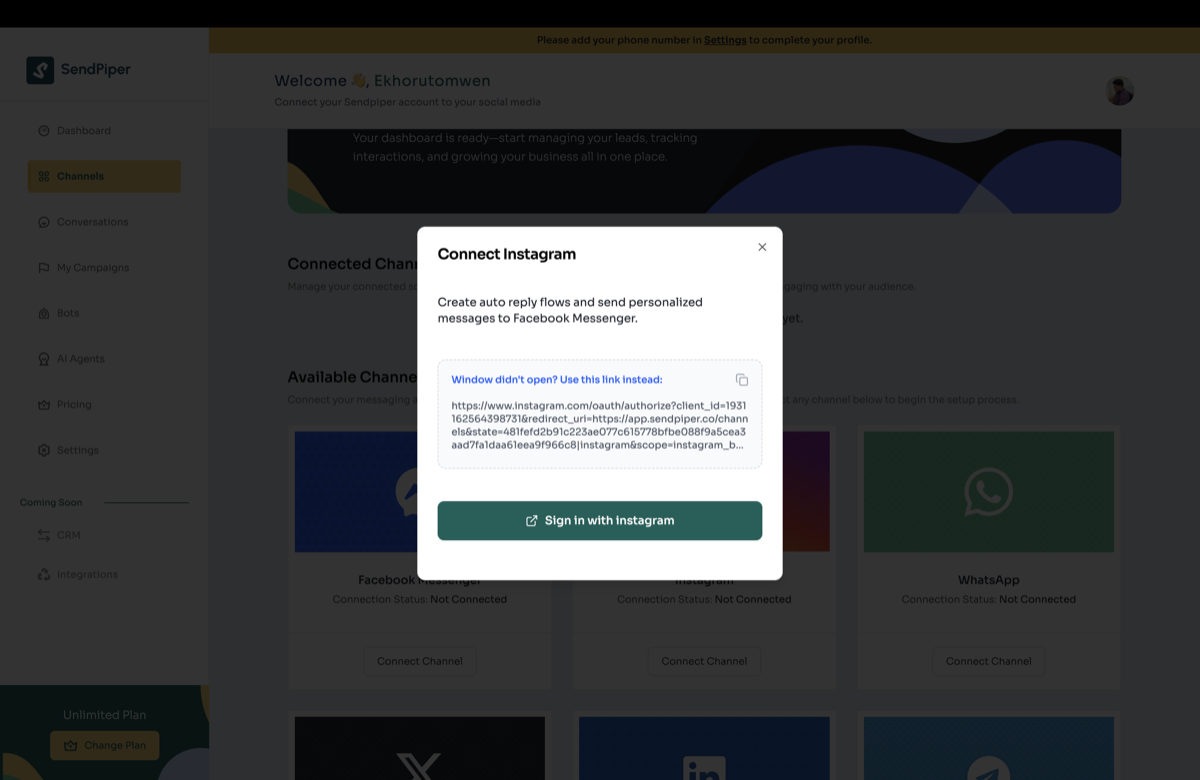
Sign in with Instagram to authorize your account
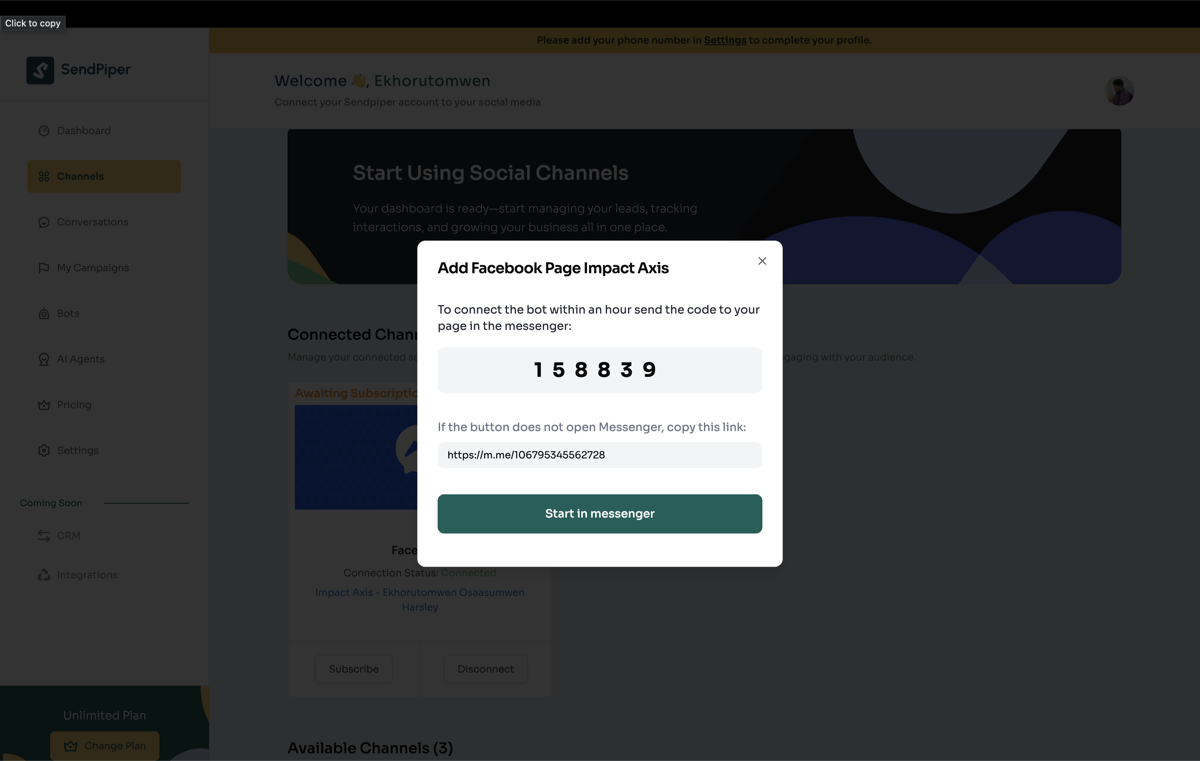
Every channel confirms with a one-time code — this example shows the Messenger step
What you can do once Instagram is connected
Comment-to-DM
Turn comments on posts and reels into private, automated conversations.
Sendpiper Flow
Build deterministic DM flows for FAQs, link drops, or product questions.
AI Agent
Let an agent trained on your knowledge base handle anything outside the flow.