
Channels / WhatsApp Business

Connect WhatsApp Business to Sendpiper
Link your WhatsApp Business account and let Sendpiper Flow, comment-to-DM, and your AI agent handle conversations the moment a customer messages you.
Get Started FreeHow to connect WhatsApp
It takes about five minutes. You'll need admin access to a Meta Business account and a phone number not already registered on personal WhatsApp.
Open Channels and select WhatsApp Business
From your dashboard, go to Channels, find WhatsApp under Available Channels, and click Connect Channel.
Sign in with your Meta Business account
A window opens for Meta's guided signup — sign in, choose or create your WhatsApp Business account, and verify your phone number by SMS or voice call, all without leaving that window. No API keys to copy or paste yourself. You're then redirected back to Sendpiper.
Activate the number
Your number now shows up under Connected Channels labeled Awaiting Subscription. Click Subscribe to finish setting up the messaging webhook — the status flips to Connected and it's ready to receive messages.
Tie a flow or AI agent to the channel
Build a flow in Sendpiper Flow for predictable responses, or connect an AI agent trained on your knowledge base for open-ended conversations. You can also send a test message to confirm everything works.
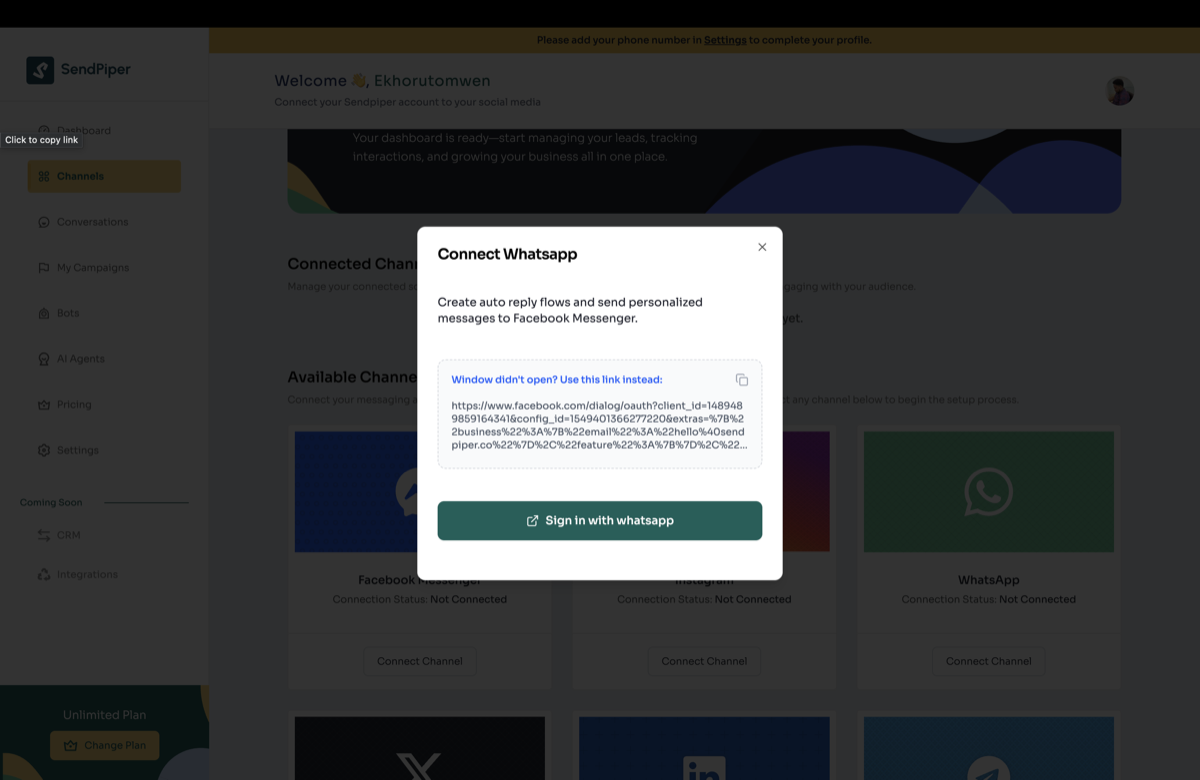
Sign in with Meta to authorize your WhatsApp Business account
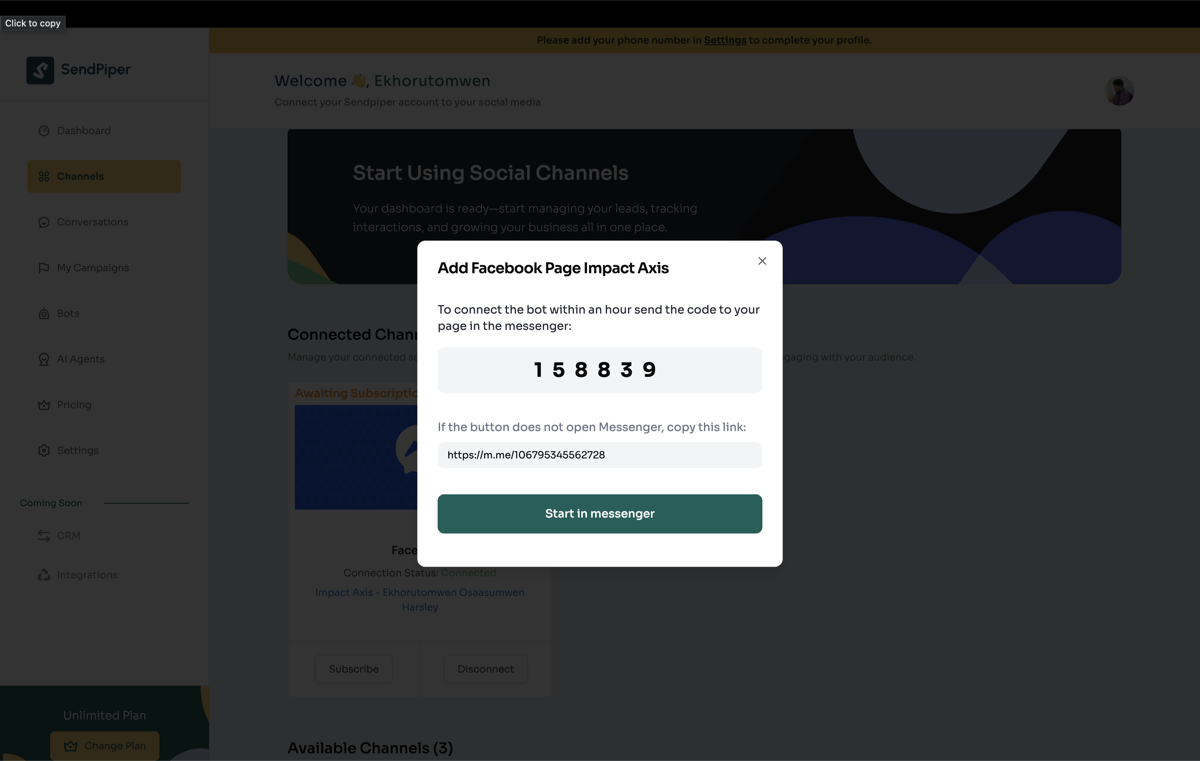
Every channel confirms with a one-time code — this example shows the Messenger step
What you can do once WhatsApp is connected
Sendpiper Flow
Build a deterministic flow for order status, FAQs, or booking requests sent over WhatsApp.
AI Agent
Hand off open-ended questions to an agent trained on your own docs and product knowledge.
Unified inbox
See WhatsApp conversations alongside Instagram, Messenger, and Telegram in one place.